
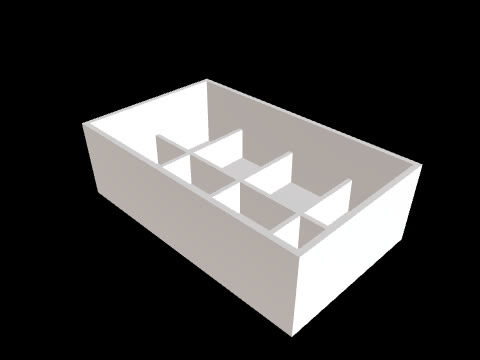
In CADlingo, you edit the same design directly on the model. Click to identify the area to change, select geometry and enter a new size, then compare recent revisions. If the result differs from your intent, undo the change or restore an earlier version from history. This article shows the sequence using the public Raspberry Pi 5 case example.
Point directly to the area to change on the model
Click a face or edge in the viewer to make it the target of your request. Double-click to select the entire part. Once you have chosen the target by clicking, write only what you want to change in the chat. For example, select the side of the case and describe how you want to change the vents.
When you only need to change a size, select the geometry and enter a new size instead of using the chat. Selecting a dimension highlights the face that its value moves, and you can preview the new value before applying it. Edits that directly change parameters provided by the model do not deduct credits.
Write down what should stay the same before editing
Briefly note what should stay the same alongside what you want to change. For a Raspberry Pi 5 case, the side vents are the target for changes, while the number and positions of the 4 standoffs should stay the same. After editing, check both whether the requested area has changed and whether the conditions you wanted to preserve still hold. You can inspect the internal structure in section view.
Compare recent revisions and undo changes
If the result differs from your intent, undo the latest edit or compare recent revisions to see what changed. If you need to return to an earlier state, you can restore an earlier version from history. Check the conditions you wanted to preserve again in the restored model before deciding on your next edit request.
Choose the version and files to hand over
Before handing over the design, check that the current model is the final state you intended to review. You can choose STEP for further CAD editing or STL for 3D printing. In the export tab, you can also download a variable table (CSV) containing variable names, values, and the parts each variable affects, so you can hand over the values changed in this revision as well.
Open the Raspberry Pi 5 case example, select a vent, and start by editing and comparing.